

We refer today to this App: https://marketplace.atlassian.com/apps/1220382/jira-cloud-for-google-sheets-official
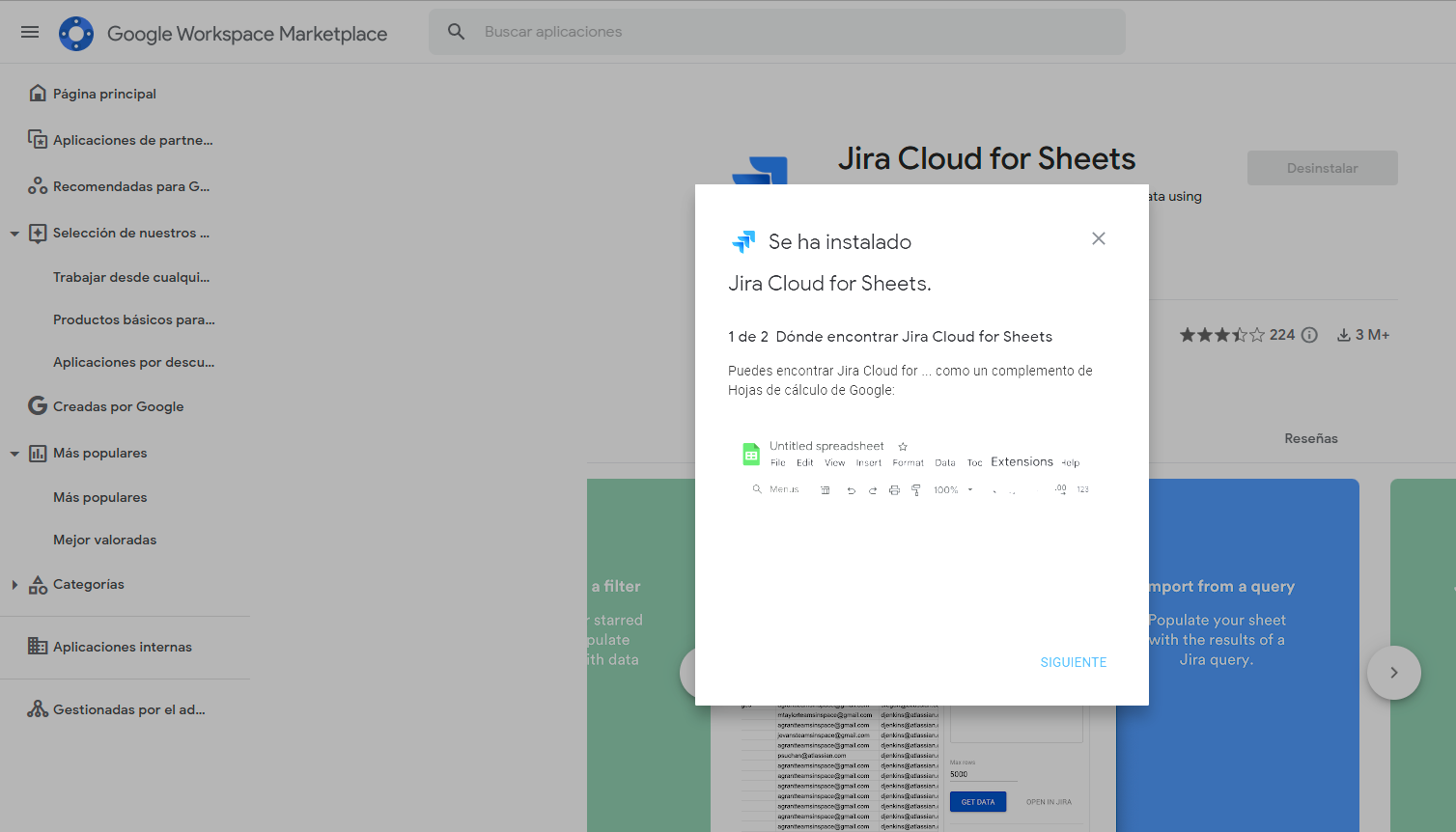
Installing the App in Google Workspace for all company members
Your admin just installed the official (and free!) Jira integration for Google Sheets in your company Google Workspace, and now you’re wondering what the heck you can actually do with it. Here’s the straight answer.
What This Thing Actually Does
Remember when you had to export CSV files from Jira, download them, then upload to Sheets just to create a simple report? Yeah, that’s over. This integration lets you pull Jira data directly into your spreadsheets and keep it updated automatically.
Getting Started (It’s Pretty Simple)
- Open Google Sheets – any sheet, new or existing
- Look for “Extensions” in the menu – click it
- Find “Jira Cloud for Google Sheets” – should be there if your admin did their job
- Click “Connect to Jira” – it’ll ask you to sign in with your usual Jira credentials
- Authorize the connection – just click “Allow” when Google asks
That’s it. You’re connected.
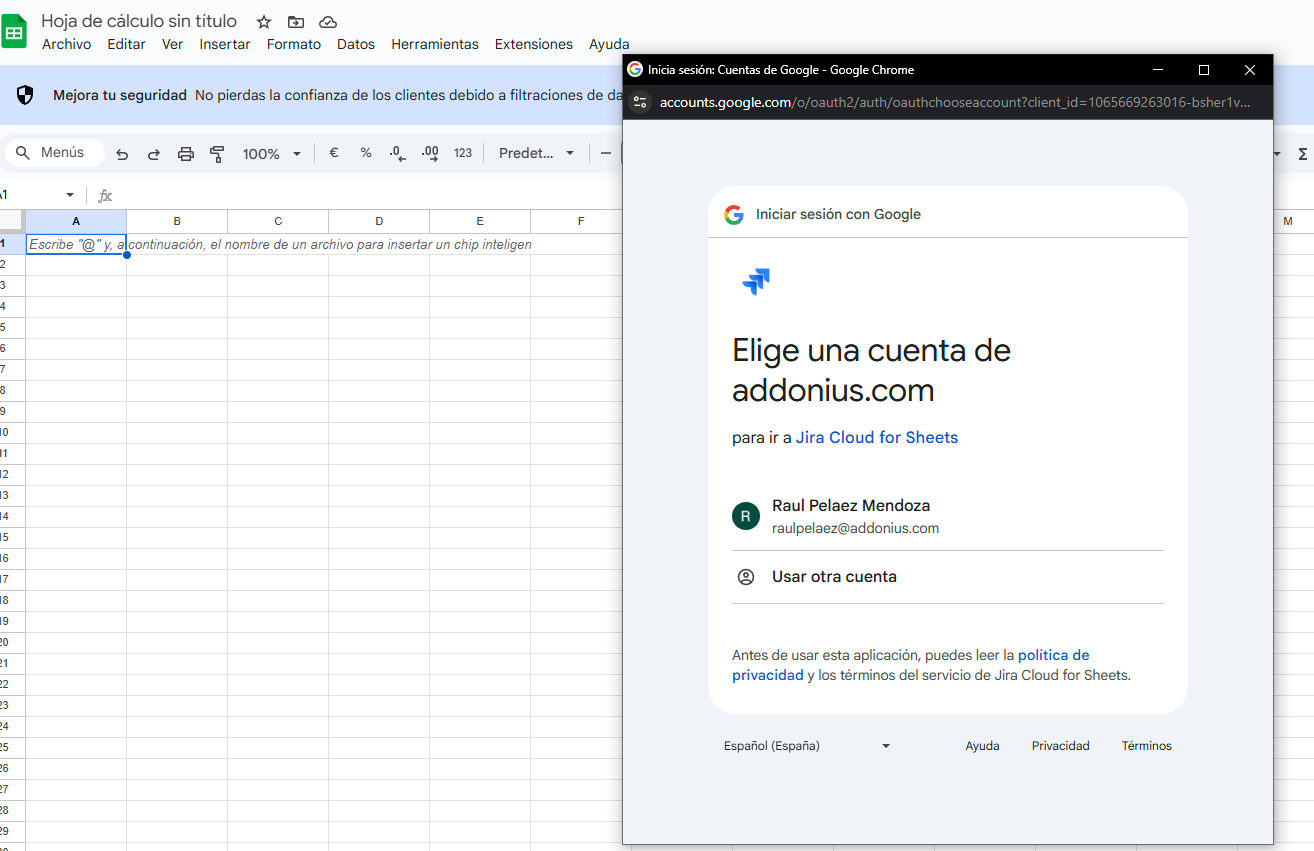
“Clicking in “Connect to Jira” from “Extensions” menu”
Two Ways to Get Your Data
Option 1: Use Your Existing Filters
You know those filters you’ve already saved in Jira? The ones like “My Open Issues” or “Sprint Backlog”? You can use those directly.
- Click the Jira icon in your sheet
- Select “Import from Filter”
- Pick any of your saved filters from the dropdown
- Choose which columns you want (assignee, status, priority, etc.)
- Hit “Import”
Option 2: Write a Custom Query (JQL)
If you know JQL (Jira Query Language), you can get really specific:
- Select “Import from JQL Query”
- Type something like: project = “Marketing” AND status = “In Progress”
- Pick your columns
- Import away
Don’t know JQL? Start with simple stuff like:
- assignee = currentUser() (your assigned issues)
- status = “To Do” AND priority = High (high priority backlog)
- created >= -7d (issues created in the last week)
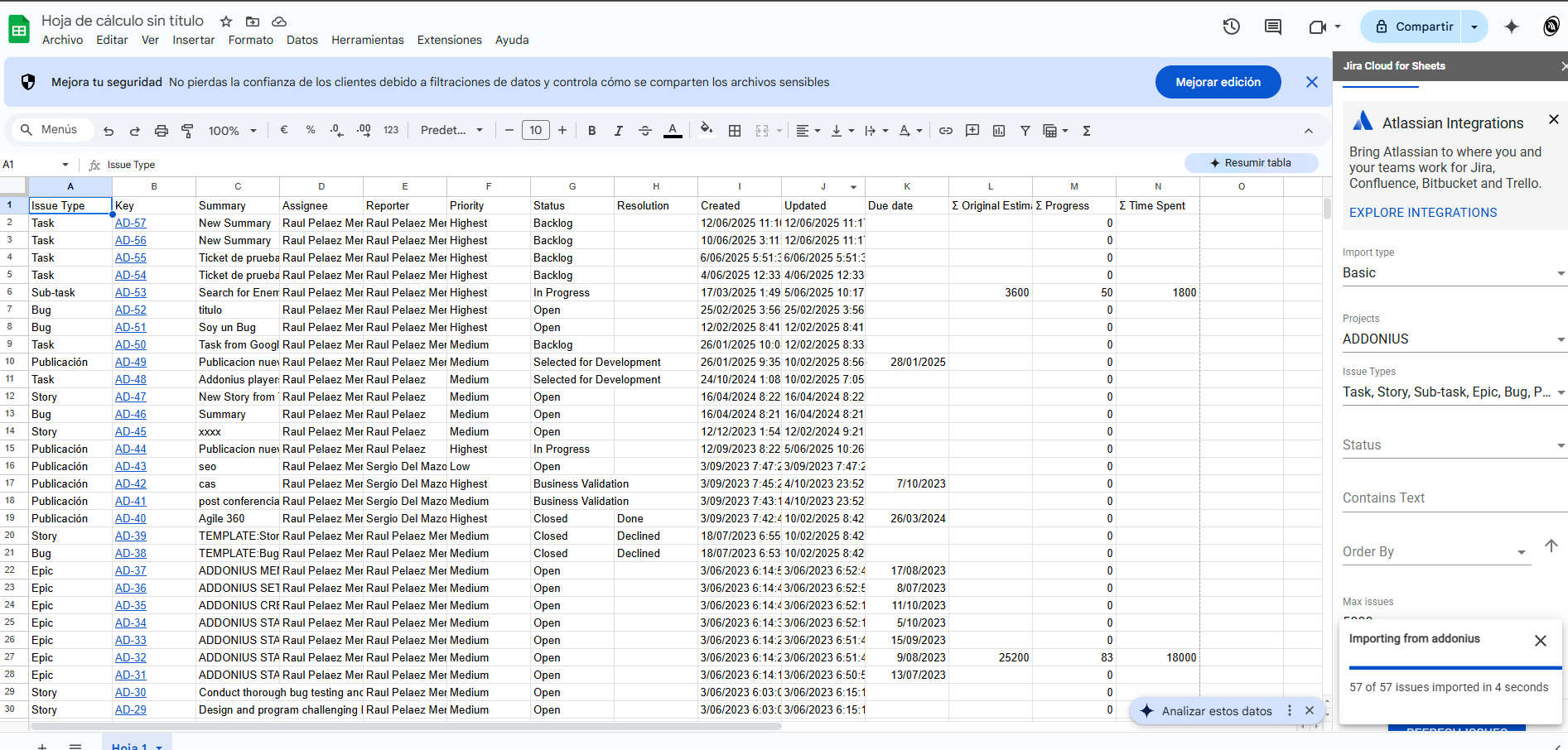
“Select a Filter or a JQL query to extract the information from Jira Cloud”
Pro Tips from Someone Who Actually Uses This
- Refresh Your Data: Your data won’t update by itself. Click the refresh button when you need current info. Don’t expect real-time updates every second.
- Column Selection Matters: Don’t import 20 columns if you only need 5. It makes your sheet slow and messy.
- Combine with Sheets Features: Once your Jira data is in, use pivot tables, charts, and formulas like you normally would. That’s where the real magic happens.
Common Issues (And How to Fix Them)
- “I can’t see the add-on”: Your admin probably hasn’t installed it yet. Send them the marketplace link and ask nicely.
- “It says I don’t have permission”: Check your Jira permissions. If you can’t see a project in Jira, you won’t see it in Sheets either.
- “My data looks weird”: Jira date formats can be funky in Sheets. Use Sheets’ format menu to clean them up.
- “It’s really slow”: You’re probably importing too much data. Try limiting your query to recent issues or specific projects.
What You Can Actually Build
Here are some real examples that people actually use:
- Weekly status reports – filter by assignee and date range
- Sprint burndown data – track story points over time
- Bug trend analysis – count issues by priority and creation date
- Team workload overview – see who has how many active issues
- Project timeline tracking – due dates and progress across multiple projects
The Bottom Line
This isn’t rocket science. If you can use Jira filters and basic Google Sheets, you can make this work. The main benefit is saving time on manual exports and keeping your reports current without constant copy-pasting.
Start simple, learn as you go, and don’t overthink it.
Need help? Your Jira admin should know the basics, and there’s always the Atlassian documentation if you want to get fancy with advanced queries.
#AtlassianChampion #JiraCloud #ExtractInfo #Atlassian #Google #GoogleWorkspace


 www.MrAddon.com ®: Jira & Confluence Administration Support Blog